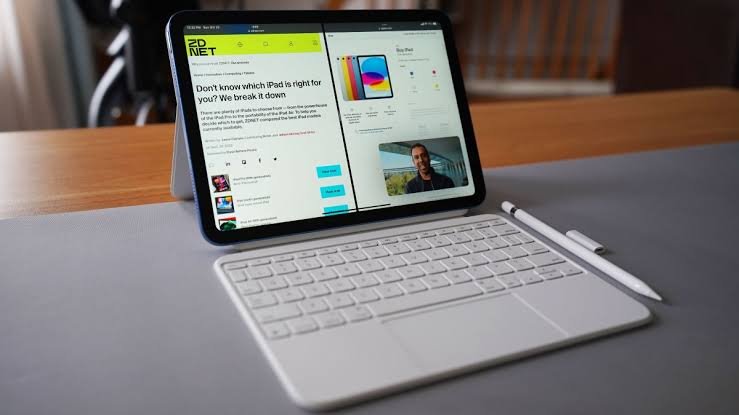

You have a big 12.9-inch screen, and you want two apps on it at once. Maybe you want notes on one side and a web page on the other. But the old way you remember may not work anymore.
Using split screen on an iPad Pro 12.9 means showing two apps side by side on your iPad. Apple’s official name for this feature is Split View. “Split screen” is just the everyday name most people search for.
Here is the quick answer. On iPadOS 26 and later, open Settings > Multitasking & Gestures, choose Windowed Apps, then use the small window buttons at the top left of an app to tile it left or right. Older versions use a three-dot button at the top of the screen instead.
This guide covers what Split View is and why it matters. It also covers which 12.9-inch models get which version and how to set it up step by step. You will also find a worked example, common mistakes, and answers to popular questions.
What Is Split Screen on the iPad Pro 12.9?
Split screen is a multitasking mode. Multitasking means using more than one app at the same time. In Split View, two apps share your display, and a thin divider sits between them.
You can drag that divider to make one app wider. Both apps stay active, so you can type in one and scroll in the other.
Here’s a simple example with real numbers. Apple lists the 12.9-inch iPad Pro display at 2732 × 2048 pixels. In landscape, an even 50/50 split gives each app about 1366 pixels of width (2732 ÷ 2). That is roughly the full width of a smaller iPad screen held upright.
Why Split Screen Matters on a 12.9-Inch iPad
You Stop Switching Apps All Day
Every app switch takes a few seconds. Say you switch 60 times a day at 3 seconds each. That’s 60 × 3 = 180 seconds, or about 3 minutes a day (an illustrative estimate, not a measured figure).
The Big Screen Makes Two Apps Usable
On a small tablet, two apps can feel cramped. On the 12.9-inch model, each half is wide enough for a full web page or document. That is the main reason people buy the larger size.
Drag and Drop Becomes Easy
With two apps open, you can drag a photo, link, or text from one to the other. Apple’s support page notes that Split View is a handy way to move information between apps.
It Works Well for Work and School
Students can watch a lecture while taking notes. Office workers can read an email while filling out a spreadsheet. Both tasks stay in view, so you lose your place less often.
Which iPad Pro 12.9 Models Support Split Screen?
All 12.9-inch iPad Pro models from recent years support Split View. The steps you follow depend on which iPadOS version you run. iPadOS is the iPad’s operating system, the core software that runs everything.
Big Change in iPadOS 26
According to 9to5Mac, Apple completely reinvented iPad multitasking with the introduction of windowing in iPadOS 26. At first, Split View and Slide Over were removed. Later updates brought them back in a new form.
With iPadOS 26.1, Apple added a new version of Slide Over back to the iPad, and iPadOS 26.2 restored the ability to drag an app from the Dock or Spotlight into a Split View window.
iPadOS 27 Support for 12.9-Inch Models
Apple released iPadOS 27 on September 14, 2026, and it supports the iPad Pro 12.9-inch 4th generation and later. According to AppleInsider, the 3rd-generation 12.9-inch iPad Pro from 2018 cannot update to iPadOS 27, though it will still receive security updates.
Multitasking in iPadOS 27 works much like iPadOS 26. Split View still only works when windowing is turned on.
Quick Model Guide
| iPad Pro 12.9-inch generation | Year released | Newest iPadOS (as of Oct 2026) | Split View method |
| 3rd gen | 2018 | iPadOS 26 | Windowed Apps (or three-dot button if on iPadOS 18 or earlier) |
| 4th gen | 2020 | iPadOS 27 | Windowed Apps |
| 5th gen (M1) | 2021 | iPadOS 27 | Windowed Apps |
| 6th gen (M2) | 2022 | iPadOS 27 | Windowed Apps |
Software support can change over time. Check Settings > General > About to see your exact model and version. You can also confirm details on Apple’s official website.
How Split View Works on iPadOS 26 and Later
The Three Multitasking Modes
In Settings > Multitasking & Gestures, you will see three choices. Full Screen Apps disables Split View and other multitasking, Stage Manager is an alternative multitasking mode, and Windowed Apps re-enables what you need for Split View.
This is the number one reason people think split screen is “broken.” The feature is there, but the wrong mode is selected.
The Window Buttons
In iPadOS 26 and later, each app window has Mac-style controls for close, minimize, and zoom in the top-left corner. These small colored dots are often called “traffic lights.”
From these controls, you can choose Tile Left or Tile Right to snap an app to one side, then drag the divider to adjust the split.
More Than Two Apps
The new system goes beyond a basic two-app split. You can place two or three app windows side by side, or split the screen into four quadrants. On a 12.9-inch display, a four-way layout is actually readable.
The Size Formula
You can estimate how wide each app will be with a simple formula.
App width = Total screen width × Your chosen percentage
For a two-thirds and one-third split in landscape:
- Main app: 2732 × 0.667 ≈ 1822 pixels
- Side app: 2732 × 0.333 ≈ 910 pixels
These are estimates. The divider takes a few pixels, and the exact sizes can vary by app.
| Split layout | Main app width | Side app width |
| 50 / 50 | ~1366 px | ~1366 px |
| 67 / 33 | ~1822 px | ~910 px |
| 75 / 25 | ~2049 px | ~683 px |
How to Use Split Screen on iPad Pro 12.9 Step by Step
These steps are for iPadOS 26 and iPadOS 27. Button names may look slightly different after future updates.
Step 1: Update Your iPad
Go to Settings > General > Software Update. Install the latest version your model supports. Newer versions of iPadOS 26 restored useful features like dragging apps from the Dock.
Step 2: Turn On Windowed Apps
Open Settings > Multitasking & Gestures. Tap Windowed Apps. If Full Screen Apps is selected, Split View will not appear at all.
Step 3: Open Your First App
Open the app you want on one side, such as Safari. Make sure it is not hidden behind other windows.
Step 4: Tile the App to One Side
Tap and hold the small colored buttons at the top left of the window. Choose the option to tile left or right. The app snaps to that half of the screen.
Step 5: Pick Your Second App
The open space will prompt you to choose another app. Tap the app you want, such as Notes. It fills the other half.
Step 6: Or Drag From the Dock
On iPadOS 26.2 and later, you can drag an app icon from the Dock. As you drag, the window preview changes shape to show whether it will land in Split View, Slide Over, or a full window.
Step 7: Resize With the Divider
Drag the thin bar between the two apps left or right. Stop when each app has the space you need.
Step 8: Close the Split
To go back to one app, use the window buttons on the app you want to keep. Choose the full-screen or zoom option. You can also close the other app’s window.
If You Are on iPadOS 18 or Earlier
Some older 3rd-gen iPads may still run older software. In that case, tap the three-dot button at the top of the app. Then tap the Split View button, and the second app appears side by side with the current one.
Practical Example: A Research and Writing Session
This is an illustrative, fictional example. It is not real study data.
Maria is a college student in Ohio. She uses a 6th-gen 12.9-inch iPad Pro to write a 5-page paper. She reads sources in Safari and types in Pages.
Before Split View
During a 3-hour session, she switches apps about 120 times. Each switch, plus finding her place again, takes about 5 seconds.
Time lost = Number of switches × Seconds per switch
120 × 5 = 600 seconds, which is 10 minutes.
After Split View
She sets Safari to about 1/3 of the screen and Pages to 2/3. Now Safari gets about 910 pixels, and Pages gets about 1822 pixels.
She still glances back and forth, but full switches drop to about 10. That’s 10 × 5 = 50 seconds lost.
The Result
Time saved = 600 − 50 = 550 seconds, or about 9 minutes per session. Over 4 sessions a week, that’s 9 × 4 = 36 minutes a week.
| Item | Without Split View | With Split View |
| Session length | 3 hours | 3 hours |
| Full app switches | 120 | 10 |
| Seconds per switch | 5 | 5 |
| Time lost per session | 10 min | ~50 sec |
| Weekly time saved (4 sessions) | — | ~36 min |
Your results may differ. They depend on your apps, habits, and how often you need to look things up.
Common Mistakes and How to Avoid Them
- Leaving Full Screen Apps turned on. This mode hides Split View completely. Fix: switch to Windowed Apps in Multitasking & Gestures.
- Looking for the old three-dot button. On iPadOS 26 and later, the old menu is replaced. Fix: use the colored window buttons at the top left of each app.
- Dropping a dragged app in the wrong spot. A window dragged slightly wrong can enter Split View when you don’t want it to. Fix: drag slowly and watch the preview shape before letting go.
- Expecting every app to work. Not all apps support multitasking, because some developers haven’t enabled it. Fix: check for an app update or contact the developer.
- Using Stage Manager by accident. Stage Manager groups windows differently and can confuse new users. Fix: pick Windowed Apps if you just want a simple side-by-side split.
- Skipping software updates. Early iPadOS 26 builds were missing features that came back later. Fix: install the newest update your model supports.
Frequently Asked Questions About Split Screen on the iPad Pro 12.9
Why did split screen disappear on my iPad Pro 12.9?
Most likely, you updated to iPadOS 26 or later, and multitasking changed. Check Settings > Multitasking & Gestures and make sure Windowed Apps is selected. Split View then works through the window buttons.
Can I split the screen into more than two apps?
Yes, on iPadOS 26 and later. You can tile two or three apps side by side, or use four quadrants. On the 12.9-inch screen, this layout is much easier to read than on smaller iPads.
Does the 2018 iPad Pro 12.9 (3rd gen) support split screen?
Yes. It supports iPadOS 26, which includes the windowed Split View system. It cannot update to iPadOS 27, but split screen still works on the version it has.
How do I make one app bigger in Split View?
Drag the thin divider between the two apps. Move it toward the app you want to shrink. Release it when the sizes look right.
Does split screen drain the battery faster?
Running two apps can use somewhat more power than one, especially with video. The difference depends on the apps and screen brightness. Apple does not publish a specific figure for this, so treat any exact number online with caution.
Conclusion
Split screen on the iPad Pro 12.9 lets you use two or more apps side by side. Apple calls it Split View, and the large display makes it truly practical.
Since iPadOS 26, the method has changed. You now turn on Windowed Apps, then use the window buttons or drag from the Dock.
Your model matters too. The 4th through 6th generation models run iPadOS 27, while the 3rd generation stays on iPadOS 26.
Your next step is simple: open Settings > Multitasking & Gestures right now. Select Windowed Apps, then try tiling Safari and Notes side by side.
Related Articles
MacBook Air vs Pro (2026): Which Should You Buy?
What Gen Is My iPad? How to Find Your Model



Pingback: iPad Dimensions: Every Current Model Measured and Compared